

Google Accessibility Newsletters
Stay up to date on the latest from Google Accessibility
Newsletters
Highlights
General updates
"What's new in Google accessibility" episode 13 is here!
Link to Youtube Video (visible only when JS is disabled)
We also have an ASL version: “What’s New in Google Accessibility” | Episode 13 | American Sign Language
- Official Google Accessibility Help Community Launch: We are thrilled to launch the official Google Accessibility Help Community, a dedicated hub created for users who rely on assistive technology or accessibility features across Google products and services. Here you can troubleshoot issues, connect with fellow users and accessibility advocates worldwide, and exchange practical tips and shortcuts. Join the conversation at: support.google.com/accessibility/community.
Gemini
- Guided Vision in Gemini: For blind and low-vision users, with the new Guided Vision you can get descriptions of what’s in front of you and real-time help from Gemini while talking through what is in your surroundings. Once the feature is enabled, you can share your camera in Gemini Live to get audio guidance on the things around you, like reading fine print on food labels verbatim, identifying color differences, ordering from low-lit menus, or locating household objects. Gemini can also give more tailored guidance, letting you know if you need to adjust your camera framing by panning across a space or centering an object. Guided Vision was built with the community; we partnered with Aira to interpret data, stress-test and refine the model. Guided Vision is now available on compatible devices running Android 9 and above for users 18+ in regions and languages where Gemini Live is supported. As with any generative AI technology, Guided Vision is an assistive utility and can make mistakes. It is not a medical device, mobility aid, or white cane replacement, and it’s not intended for navigation, safe-travel guidance, or obstacle detection. Users should continue relying on established mobility aids and safe-travel practices in physical environments.
Android
- Integrated TalkBack experience on Samsung: Google and Samsung have merged their versions of TalkBack into a single, unified app for the Android ecosystem. Samsung devices will now receive updates directly from the Google Play Store, which gives users much faster access to new features, AI improvements, and bug fixes. Existing TalkBack settings are also preserved to ensure a smooth and seamless transition during the update.
- Guided Vision and Gemini Enhancements: TalkBack now uses the upgraded Gemini 3.1 flash lite AI model to give you clearer and more accurate descriptions of images and screens. Additionally, you can quickly access the new Guided vision directly from TalkBack. Guided Vision uses your camera in Gemini Live to make your daily tasks easier, such as reading a restaurant menu or identifying objects around you.
- Web Navigation and Text Selection: When you browse dynamic websites in TalkBack, live updates work better, and announcements now occur in a more logical order. Furthermore, you can now select, copy, cut, and share text on websites.
- Braille Display Improvements: Connecting your braille display is now easier, as TalkBack now automatically supports more braille displays. For an improved experience, you can also map any TalkBack gesture directly to a Braille display command, giving you more control over your custom shortcut setup.
- Physical Keyboard Support: If you use a physical keyboard with TalkBack, you can now get keyboard-specific hints. Navigation is also smoother, as your focus starts exactly where you left off when you switch from touch to a physical keyboard. Additionally, you will hear more information when you use a physical keyboard to type in Chinese, Japanese, Korean, or Vietnamese.
- Voice Selection: Choosing your preferred voice is simpler than ever. You can now choose, change, and preview your speech voice directly in TalkBack settings, without needing to navigate deep into your device's system settings.
- Navigation and Audio Enhancements: TalkBack 17.1 offers a smoother, faster, and more responsive navigation experience with faster swipe gestures and smarter speech interruptions. TalkBack also now features quieter microphone use, reducing extra spoken announcements so you aren't interrupted when your microphone is active during a call or voice recording.
- Blinking cursor: To help people with photosensitive seizure triggers and cognitive differences such as focus disorders, we have added the ability to turn off the blinking text cursor. This setting is under Settings > Accessibility > Color & motion > Text cursor blinking.
- Motion Assist: Keep using your phone from the passenger seat while reducing motion sickness. Motion Assist adds a subtle bubble overlay to your screen that moves with the vehicle — designed to help bridge the gap between what your eyes see and the movement of your ride. Set it to turn on automatically and add it to Quick Settings, and customize the bubble shapes, colors, and opacity to match your style. Try it during your next ride on phones using Android 17.
- Voice Access: Voice Access has new features to make hands-free navigation even more seamless. When you speak, a redesigned feedback bar now automatically resizes to fit your words, floating neatly below the top of the screen—so your clock, battery, and notifications stay visible. You’ll also see an active blue glow while you speak and a solid outline for responses, with text that adjusts to match your preferred font size. Making phone calls with your voice has also become simpler, since Voice Access can identify contacts by how names sound, rather than relying on exact spelling. If you have contacts with similar names, Voice Access brings up a quick menu so you can choose the right person and phone number, hands-free.
- Scalable Emojis: With Gboard, you can now make emoji bigger. The size of emojis now automatically adjusts to align with the font size to make emojis more convenient for users with low vision and/or those who rely on larger display text. For further personalization, you can make emoji bigger or smaller than your default font in Gboard settings.
Pixel
- Sign-to-Text: Sign-to-text is a new feature that translates American Sign Language (ASL) into written English. Developed in partnership with the Deaf and hard of hearing community, the feature is powered by a multilingual sign-language-to-text–translation (SL2T) model that analyzes hand shapes, facial expressions, and body movements, supporting both one-handed and two-handed signing, and translating them into written English in real-time. Similar to how you can use dictation instead of typing, sign-to-text enables you to sign to your phone anywhere you’d normally type with Gboard. You can sign to search the web, prompt Gemini, draft messages or documents, or have a conversation with someone using Live Transcribe. Sign-to-text is currently available on Pixel 11, with support for more devices and additional sign languages coming soon.
- Rambler: We’re excited to Introduce Rambler, a smart new way to convert spoken language into written text, currently available on Pixel 11 devices, with more devices to follow. Gboard Dictation on Android already lets you convert speech to text quickly and accurately, but the way we talk isn't always the way we want to write. When speaking aloud, we tend to self-correct, repeat ourselves, or use "ums” and "likes." With Rambler, you can speak naturally and capture the important parts of what you say in a concise message. No more manually speaking punctuation or going back to clean up “ums” later - with Rambler, this all happens automatically. Afterward, you can edit your text easily with your voice, or even while you are speaking. “Let’s meet at 6:30 no wait make it 6” -> “Let’s meet at 6” is ultimately entered as text. If you're using TalkBack, you can start and stop this quickly with the existing two-finger double-tap dictation gesture if Rambler is your selected dictation method. Rambler also allows for multi-lingual dictation within a single utterance. Now you can switch back and forth between multiple languages in a single sentence without tedious keyboard language switching.
- Guided Frame: The Camera app on Pixel now includes Gemini integration into Guided Frame, a feature that assists blind and low-vision users to take photos. With Gemini, Guided Frame users can expand beyond generic framing cues like “move left” or “face center,” using voice prompts to capture specific subjects in complex scenes. For instance, at a breakfast table you could say, “Focus on the omelet in the upper right corner,” or “Center on the fried egg,” and Guided Frame can help you capture that specific shot. This Guided Frame update is currently available on Pixel 11 series, with support for Pixel 6a and newer devices coming soon.
Chrome Browser/ Chrome OS / Chromebook
- Reading Mode: Reading Mode, a Chrome feature for deeper focus, now offers a full-page, fully immersive experience that isolates the main article on busy webpages and removes visual clutter like ads, menus, and sidebars.
YouTube
- Translated Captions on YouTube: When watching a dubbed video on YouTube with captions enabled, you will now see auto-generated translated captions in the audio's language (available for 50+ languages).
Workspace
- Neurodiversity Guide: We have an exciting development for how Google Workspace with Gemini can be used to address executive-functioning challenges. These skills can be hard for everyone, but the difficulties are particularly pronounced for the approximately 20 percent of the population who are neurodivergent. That’s why Workspace teamed up with Understood.org, an organization that supports people with learning and thinking differences. Together, we’ve created a guide for effective work, offering strategies that support executive function with the help of AI. This includes tips like using Gemini to create the first draft of a document, silencing notifications during scheduled blocks of “Focus Time” in Google Calendar, taking notes during a presentation, or summarizing long email threads. Check out the Neurodiversity guide to effective work to learn more.
Search
- AI Mode Keyboard Navigation: On Search, we launched two updates to improve the keyboard navigation experience in AI Mode. First, we’ve created simple keyboard shortcuts for desktop that allow users to quickly navigate between the input field, their prompts, and replies in their conversation history. We’re also releasing a new jump link to help users easily return to earlier points in the conversation. Both updates will make it easier for users to navigate quickly and efficiently through long conversational AI responses.
Highlights
General updates
"What's new in Google accessibility" episode 12 is here!
Link to Youtube Video (visible only when JS is disabled)
We also have an ASL version: “What’s New in Google Accessibility” | Episode 12 | American Sign Language
Gemini
-
We’ve been partnering with the neurodivergent community to learn how AI can serve as a meaningful daily ally. These two strategies help reduce cognitive load and boost focus for everyone:
You can set permanent preferences by adding custom instructions under Settings > Instructions for Gemini. For example, if you find dense text difficult to read, you can tell Gemini to always prioritize scannability with clear headings and breathing room.
You can also personalize your context by allowing Gemini to provide more relevant responses based on what it knows about you. By referencing past chats or connected Google apps, Gemini can offer tailored advice for anything from coaching you through a complex email to navigating workplace situations.
Android
- New TalkBack Keyboard Shortcut
- Android users who are blind or have low vision who use an external keyboard can now access the TalkBack screen reader via a useful shortcut that turns the feature on and off by pressing “Action + Alt + T.” Note that the Action key varies based on the keyboard: Windows keyboards use the “Windows” key for these actions, and Mac keyboards use the “Command” key.
- Customizable 3-Button Navigation
Those who find Android’s 3-button navigation mode easier to use than standard gesture navigation will be happy to know that the order of the “Back,” “Home,” and “Recents” buttons is now customizable. The “Back” and “Recents” buttons can be swapped between the left and right positions. This may be helpful for those who struggle with thumb strain, or for users switching from other phones who are used to a different button order. This setting preference will also carry over when you set up a new device. - Mouse Keys Acceleration
Users who rely on Android’s Mouse Keys feature, which lets you control your cursor with a physical keyboard rather than a mouse, can now experience custom cursor acceleration and speed for more control over how quickly the cursor moves from your key presses. -
Unified Voice Access Shortcut
Voice Access has introduced a unified Android Accessibility shortcut in Settings that controls listening mode, and the shortcut appears automatically. To turn listening on or off, simply tap the floating Voice Access shortcut. If you don’t like the default floating shortcut, you can customize your shortcut to turn listening on or off using the volume keys, accessibility gesture, or the navigation bar accessibility button instead.When you have multiple windows open on large-screen devices, Voice Access will now interact only with the topmost application window, preventing accidental interactions with hidden content, and reducing the number of visual labels on your screen. Use the “Show recent apps” command to switch to a different window.
Pixel
- Offline Guided Frame Scene Descriptions
Now the scene description feature for Guided Frame can be used offline. So whether you’re capturing a sunset or a group portrait, Guided Frame on Pixel helps you compose more accurate shots, even without an Internet connection. This update is available to those with a Pixel 10 series device, including the foldable model—with the exception of Pixel 10a. As of the latest update, Guided Frame is now enhanced with Gemini to support over 40 additional languages, including Danish, Thai, and Turkish—note that using these additional languages does require an Internet connection.
Chrome Browser/ Chrome OS / Chromebook
- Caret Browsing in Chrome on Android
Caret Browsing in Chrome on Android devices is now available, meaning users can navigate the web using only a keyboard. Once the feature is turned on, a text caret will appear on webpages; users can then move the cursor using the arrow keys on a keyboard, as if they are navigating within a text document. Users can also activate buttons and links within the text, and can even select text via the caret by holding down the “Shift” key while moving the caret over the desired text.
YouTube
- Voice Boost on YouTube
Voice Boost on YouTube makes dialogue more clear by filtering out background sounds and highlighting speech. Available now on select videos, this feature can be especially helpful if you are hard of hearing, watching YouTube in a noisy room, or learning a new language. You can use it now for select videos via your computer or TV. - Expressive Captions Expand to 65+ New Languages
We’ve expanded Expressive Captions on YouTube to 65 additional languages. This feature identifies 25 specific non-speech sounds—such as [singing], [cheering], or [applause]—and displays them within the caption track. This update brings these descriptive cues to a global scale, providing more expressive captions for more viewers.
Research
- Natively Adaptive Interfaces Update
For a deeper look at the technical framework, the Google Research Blog post on how AI tools redefine universal design explores the underlying architecture, while The Keyword article on the NAI accessibility mission provides an overview of the broader initiative to scale these personalized solutions globally.
Link to Youtube Video (visible only when JS is disabled)
We also have an ASL version: “What’s New in Google Accessibility” | Episode 11 | American Sign Language
Android
-
Dark Theme & Magnification
- With the new expanded option for dark theme which is now available in the most recent Android 16 release, your phone can automatically darken most of the apps, even those that don’t have their own native dark theme. This may create a more consistent and comfortable viewing experience, especially for people with low vision or light sensitivity.
-
Android’s magnification feature has new updates for those who use a mouse or keyboard with their device. There's a new keyboard shortcut, and three new mouse-following modes for full-screen magnification, which let you customize how the magnification viewport follows your mouse cursor:
- Centered mode: The cursor stays in the center of the screen, and the magnified viewport moves with it until it reaches the content’s edge.
- Edge mode: The cursor operates normally until it reaches the screen’s edge, then the viewport starts to follow it.
- Continuous mode: The cursor moves across the display while the viewport adjusts to keep the cursor visible.
-
TalkBack
- For those who use Android’s screen reader, TalkBack, we’re introducing a simple and intuitive two-finger double-tap gesture to start or stop Gboard’s voice dictation. This makes it easier to activate voice input to not only dictate text, but also edit your text using natural voice commands. Just say, “Replace Monday with Tuesday” to fix a date, or, “Make it shorter” if your text is too long.
- TalkBack users can now hear formatting details, like bold or italics, and text color.
- TalkBack now has an "enhanced keymap" for physical keyboards, featuring a variety of new commands and shortcuts. This enhancement includes a “browse mode” for more efficient web navigation, streamlining navigation and interaction for TalkBack users who rely on physical keyboards. You can switch to the enhanced keymap in TalkBack settings under Keyboard shortcuts, and there is also a new keyboard tutorial available to help you learn the keymap.
- If you use a braille display, you can use new browse mode shortcuts to traverse through content directly from your display. Some braille display shortcuts were adjusted to accommodate this change. See a list of all braille display shortcuts in braille display settings.
-
Voice Access
- Voice Access lets you swipe, open apps, and navigate your phone with spoken commands. Based on community feedback, we know that needing to physically tap your phone’s screen to start Voice Access can be challenging. Now, once the feature is enabled on your device, you can launch it directly with Gemini. Just say, “Hey Google, start Voice Access” and begin controlling your phone entirely hands-free.
- Voice Access is also now better at understanding commands, including voice typing commands and punctuation, and at recognizing different accents and speech patterns. We’ve also added support for turning wifi and Bluetooth on and off, and it's now available in Japanese.
- AutoClick
- Android’s AutoClick feature makes it easier for users with motor impairments to utilize their phones and tablets. If you use a connected mouse with your Android device and experience difficulty with the physical "click" action, you can set a custom amount of time for the cursor to pause before it automatically performs a “click” for you. You can also customize the action itself in the new “click type” panel by choosing between left-click, right-click, double-click, long-press, scroll, or drag.
-
Expressive Captions
-
Expressive Captions, part of Android’s Live Caption, uses AI to communicate details like tone, volume, environmental cues, and human sounds such as sighs or gasps from the audio playing on your device.
Now it can also detect and display the emotional tone of speech. So emotional states like [joyful] or [sad], are more apparent in conversations and media.
-
Pixel
- Pixel foldable devices now include the Magnifier app. This lets you use your phone to magnify small text, perform detailed tasks, and zoom in to view faraway signs, all while taking advantage of the larger unfolded screen. You can also search for specific text using either the keyboard or your voice.
Chrome / Chrome OS
- On ChromeOS, ChromeVox mathML support has been restored and navigation has been improved to allow for exploring math equations using the arrow keys. Additionally, a new link in your Chromebook’s accessibility settings makes it easy to contact the Google Disability Support team with questions or feedback about any assistive technology available on ChromeOS.
- Chrome desktop Reading mode has added read aloud, so users can hear their text spoken aloud, adjust the speed, and follow along with customizable highlights. 109 natural voices are available, covering 29 languages.
YouTube
- Expressive captions are now available on YouTube videos in English across all devices, providing our viewers a more immersive content experience by displaying the intensity of speech in all caps, expressions of sounds like sighs and gasps, as well as noises from the environment. YouTube videos in English uploaded after October 2025 showcase these expressive captions, and we’ll continue rolling this feature out on more videos. Expressive captions use AI to communicate things like tone, volume, environmental cues and human noises from the audio playing on a device.
Research
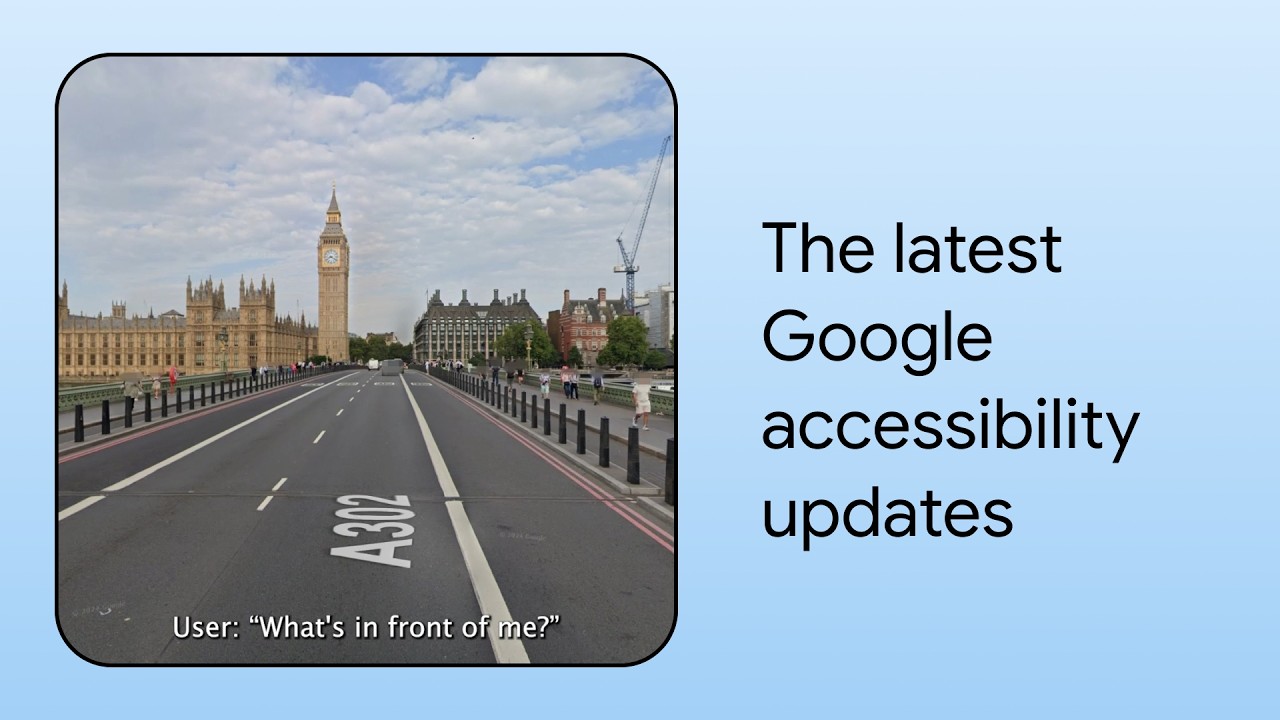
- In an exciting development aimed towards the blind and low-vision community, Google Research recently presented an exciting new prototype app, StreetReaderAI, at the User Interface Software and Technology (UIST) 2025 conference in Korea.StreetReaderAI offers an advanced, first-person streetscape exploration experience for blind and low-vision people. It uses real-time AI to generate descriptions of nearby roads, intersections and places, and enables dynamic conversations with a multimodal AI agent about the local environment. This is a promising step towards making interactive streetscape tools more accessible for everyone.
Highlights
General updates
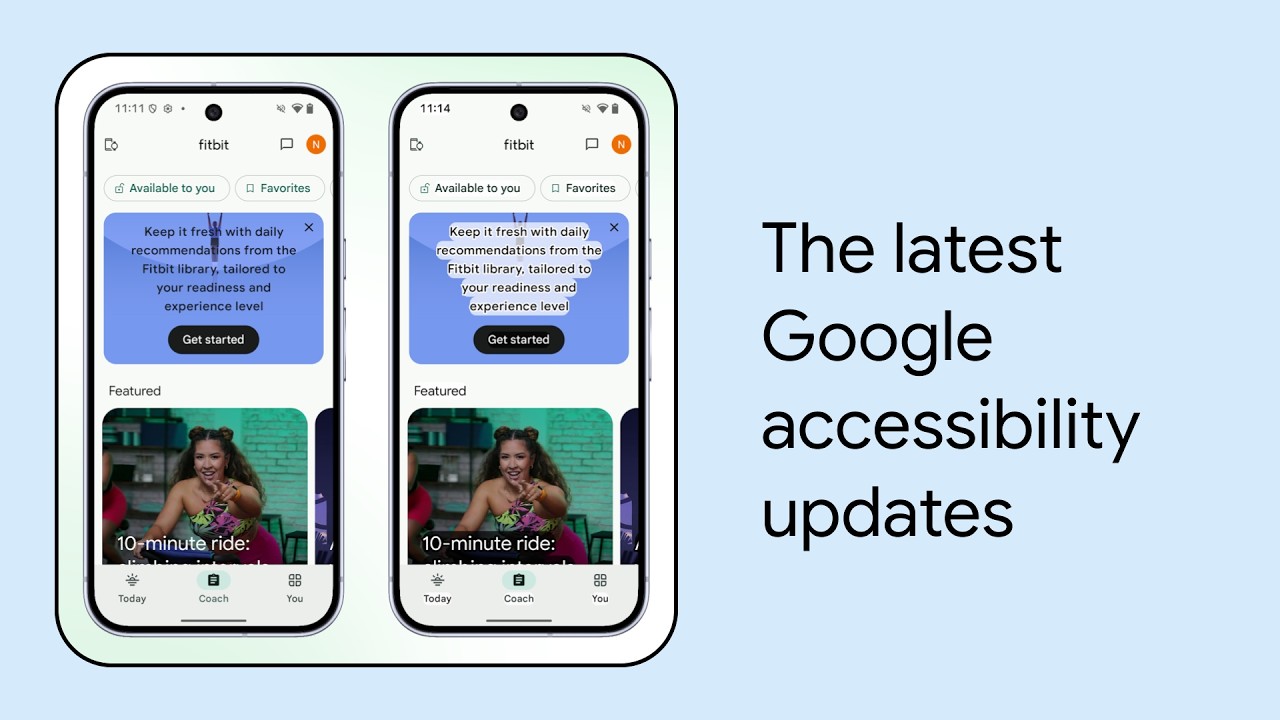
"What's new in Google accessibility" episode 10 is here! Discover exciting updates across Gemini, Android, Pixel, Workspace, YouTube and Research. Watch now and please do share.
Link to Youtube Video (visible only when JS is disabled)
We also have an ASL version: “What’s New in Google Accessibility” | Episode 10 | American Sign Language
Gemini
- Gemini Live now has captions on Android, iOS, and Chrome. This new feature allows you to read Gemini’s verbal responses as they are spoken out.
Android
- Outline Text is a setting that enhances text readability by increasing contrast. It converts most text to black or white, depending on the original color, and then adds a subtle, contrasting black or white background to highlight the words. Link colors and other colored text are preserved, with higher contrast.
- Android’s screen magnification feature now offers a Magnify Keyboard option. This allows users to zoom in on the keyboard while using full-screen magnification. This feature addresses a longstanding request from our users with low vision, making it easier to type passwords and select emojis, punctuation, stickers, or GIFs.
- Deep Links allows you to directly share links to Android accessibility features. For instance, tapping a link to “g.co/android/font” in a social media post from an Android phone will open the corresponding “Display size & text” settings page, making it easier to help people tailor their device to their accessibility needs.
Pixel
- Pixel users may already know the Magnifier app, which allows you to use your Pixel camera to magnify small text, see object details, or zoom in on faraway text like street signs. Now you can search for specific text using just your voice. It’s a useful feature for airports, restaurants, and other places with lots of text to sort through.
- Pixel’s Guided Frame now leverages Gemini models to provide detailed scene descriptions, helping people who are blind or have low vision better understand what their camera sees when taking photos. Audio hints, vibrations, visuals, and scene descriptions help users snap great pictures with ease.
For example, if you're taking a picture of four friends on the street, instead of only telling you that there are four faces in your shot, Guided Frame’s scene descriptions can now give you details like: there are cars parked nearby, some trees are in the background, and everyone is laughing.
Workspace
- Google Meet now offers customizable caption styling, including font size, font type, font color, and background color. This allows captions to be displayed in the most optimal way for each user’s needs.
YouTube
- YouTube’s auto-generated captions are now available for 25 additional languages, including Basque, Cantonese, and Zulu. That means 66 languages in total are now supported by automatic captioning, and all of these captions will now be punctuated.
- Auto-dubbing now supports 14 additional source languages for dubbing into English.
Research
- The Natively Adaptive Interfaces (NAI) Guidebook for software developers has officially launched on the Google for Developers site, providing step-by-step processes, code snippets, and case studies to empower developers to create adaptive and interactive interfaces, using multimodal AI agents, that are broadly accessible. This external release aims to accelerate the development of accessible experiences for everyone, fostering innovation and broader societal impact.
Stay up to date on the latest from Google Accessibility
I acknowledge that my information will be used in accordance with Google's Privacy Policy.