Choosing the best IDE or code editor for Python means weighing your skill level, project type, and workflow in a landscape that has changed dramatically in recent years. AI-first editors have arrived, and well-established tools have added AI integrations. This guide cuts through the noise and maps each tool to the situations where it fits best.
The Python ecosystem now spans six categories of coding tools. You’ll walk through each one, learn what distinguishes the tools within each category, and end with a flowchart that maps common scenarios to concrete recommendations.
Here’s a quick overview of the situations you’re most likely to encounter and the tools that fit each one:
| Situation | Tools to Consider |
|---|---|
| Learning or teaching Python | IDLE, Thonny |
| Professional development (GUI) | Visual Studio Code, PyCharm, GitHub Codespaces |
| Professional development (terminal) | Neovim (Vim), Emacs |
| Data science or machine learning | JupyterLab, Google Colab, marimo, Spyder, Positron |
| AI-assisted coding | Cursor, Kiro, Zed, PyCharm with JetBrains AI Assistant, or VS Code with GitHub Copilot |
| Coding in the browser with no local setup | GitHub Codespaces, Google Colab, Real Python Exercises |
With this overview, you’re ready to explore the main features of these tools. First, you’ll get a quick peek at what makes a good code editor for Python.
Get Your Cheat Sheet: Click here to download your free Python IDEs and code editors cheat sheet (PDF) and match the right tool to your skill level, project type, and workflow.
Take the Quiz: Test your knowledge with our interactive “The Best IDEs and Code Editors for Python (Guide)” quiz. You’ll receive a score upon completion to help you track your learning progress:
Interactive Quiz
The Best IDEs and Code Editors for Python (Guide)Test your grasp of Python IDEs and code editors, from beginner-friendly tools to notebooks, AI-first editors, and cloud workspaces.
What Makes a Good Python Code Editor?
Before you dive into specific tools, it helps to know what features matter when choosing a Python integrated development environment (IDE) or code editor.
Most general-purpose Python editors provide these basic features:
- Syntax highlighting: Color-codes keywords, strings, and identifiers so you can scan code at a glance.
- Code completion: Autocompletes names as you type, drawing not just on the current file but also on your installed packages and type stubs.
- Linting and type checking: Flags likely bugs before you run the code, using tools like Pylint, Ruff, or mypy.
- Integrated debugging: Lets you step through code, inspect variables, and set breakpoints without leaving the editor.
- Virtual environment and package management awareness: Detects active virtual environments automatically and uses the right Python interpreter and packages.
- Code formatting: Keeps your code consistently styled using formatters like Black or Ruff, with no manual effort.
Other features are less universal, but they’ve become standard in modern professional workflows:
- Git integration: Staging, committing, and reviewing diffs in place saves you the context switching of a separate Git client.
- AI assistance: Ranges from inline completions to multi-file chat and agentic refactoring, and from lightweight extensions to editors designed around AI.
Nowadays, the level of AI integration you want is one of the main axes for choosing a coding tool. If deep AI integration is what you’re looking for, then you can skip ahead to the section on AI-first editors. However, if you’re new to Python, then you’ll want to avoid tooling complexity, and the beginner-friendly IDEs and editors in the next section are a better starting point.
Beginner-Friendly IDEs and Editors
If you’re just starting with Python, the worst thing an editor can do is get in your way before you write a single line of code. The two tools in this category are designed around that principle: minimal setup, clear feedback, and no configuration.
IDLE
IDLE is the standard Python IDE and ships with the official Python installer on Windows and macOS. You can launch it from the Start menu on Windows and from the Launchpad on macOS.
On Linux, you can install IDLE separately with the sudo apt install idle command on Ubuntu or Debian. Then run idle in the terminal to start the Python shell with a code editor attached. There’s nothing to configure and no account to create.
Here’s where to read the docs, grab the installer, and go deeper with Real Python’s IDLE resources:
| Resource | Link |
|---|---|
| Documentation | docs.python.org/idle |
| Download or install | python.org/downloads |
| Real Python | Getting Started With Python IDLE and Starting With Python IDLE |
The editor includes syntax highlighting, a basic debugger, and an interactive REPL that lets you test code ideas immediately. The interface is minimal by design. You get the essentials and nothing more.
IDLE is a practical choice for working through the Python documentation, experimenting with short scripts, or teaching a single concept in a classroom setting where you can’t rely on students having anything else installed.
Here’s IDLE’s main interface, with its REPL and editor window side by side:

Best for: Quick experiments, learning the language, and situations where you need Python’s built-in tools with no extra installation steps.
Thonny
Thonny is a beginner-friendly IDE that bundles its own Python interpreter. This means you can install Thonny and start writing Python code without first setting up Python separately. That removes one of the most common early stumbling blocks.
Thonny’s documentation, its download page, and a full Real Python walkthrough are all here:
| Resource | Link |
|---|---|
| Documentation | github.com/thonny/thonny/wiki |
| Download or install | thonny.org |
| Real Python | Thonny: The Beginner-Friendly Python Editor and Thonny: A Beginner-Friendly Python Editor |
Thonny has a visual debugger that lets you step through code. It highlights the specific subexpression being evaluated, not just the whole line. With this tool, you can watch a list comprehension evaluate element by element or see exactly when a function call returns.
Thonny also includes a basic package manager that wraps pip, and a variable inspector. These tools spare you the command line while you’re starting out, so you can install a package or inspect a variable without leaving the editor.
Here’s Thonny’s main interface, showing the editor and the integrated REPL:

Best for: Python learners who want a self-contained environment with visual debugging that shows exactly how Python executes code.
Full-Featured Python IDEs and Editors
Once you move past the learning stage into real projects, you need tools that grow with your code. The two environments in this section are the dominant choices in professional Python development and have been for years. Both tools have also added AI integrations that point toward the AI-first editors covered next.
Visual Studio Code
Visual Studio Code (VS Code for short) is an open-source code editor from Microsoft that runs on Linux, macOS, and Windows. Out of the box, it’s a general-purpose editor. With the Python extension and some tweaks, it becomes a full-featured Python IDE.
From the download and Python extension to Real Python’s in-depth guides, here’s everything you need:
| Resource | Link |
|---|---|
| Documentation | code.visualstudio.com/docs |
| Download or install | code.visualstudio.com/download |
| Python extension | marketplace.visualstudio.com |
| Real Python | Python Development in Visual Studio Code, Advanced Visual Studio Code for Python Developers, and Python Development in Visual Studio Code (Setup Guide) |
Install the extension, point VS Code at your Python interpreter, and you get autocomplete, inline linting, a test runner for pytest and unittest, integrated Jupyter Notebook support, and a debugger with a visual interface.
The extension marketplace is VS Code’s biggest strength. If you need Docker integration, remote SSH development, or a database explorer, you’ll find an extension for each. The same ecosystem that makes VS Code versatile also means a fresh install requires more configuration than Thonny does, but that setup work is well documented and widely shared.
VS Code’s AI integration centers on GitHub Copilot, a free extension that adds inline completions and a chat sidebar, with a paid plan available for heavier use. Copilot makes VS Code a natural stepping stone to the AI-first editors that follow.
Here’s what VS Code’s main interface looks like:

Best for: Everyday Python development across web, CLI, automation, and data science tasks. The right choice if you want a single editor that handles almost any project type through extensions.
PyCharm
PyCharm is a dedicated Python IDE from JetBrains. The core IDE is free and includes Jupyter Notebook support. PyCharm also has an optional Pro subscription that adds support for web frameworks, database tools, and remote development features.
You’ll find PyCharm’s docs, download, and a complete guide below:
| Resource | Link |
|---|---|
| Documentation | jetbrains.com/help/pycharm |
| Download or install | jetbrains.com/pycharm/download |
| Real Python | PyCharm for Productive Python Development (Guide) |
Unlike VS Code, which requires additional setup, PyCharm works well for Python out of the box, with no extensions to install. Its refactoring tools understand Python’s semantics and allow you to rename a method and have every reference updated automatically, including ones in string-based template files.
The Django and Flask support in the Pro subscription extends that semantic understanding to template tags, URL patterns, and object-relational mapping (ORM) queries. The integrated database browser lets you inspect and edit records alongside your code.
PyCharm has added JetBrains AI Assistant in recent versions, bringing inline completions and a chat interface to the IDE. The AI integration is optional. It includes a free tier, and you can either subscribe to a paid plan or bring your own API key to connect the models you prefer.
PyCharm is heavier than VS Code. This means it takes longer to start, uses more memory, and indexes your codebase aggressively on first open. On modern machines, that isn’t a blocker, but it’s worth knowing if your hardware is older.
Here’s PyCharm’s interface:

Best for: Large, complex Python projects, especially Django or Flask applications, where deep IDE intelligence and minimal extension management are worth the resource cost.
AI-First Editors
A code editor with an AI extension is different from an AI-first editor. The difference isn’t the feature list, since VS Code and PyCharm now offer their own AI integrations too. The difference lies in where each one started: both of those editors existed long before the current AI wave and added AI to mature products, whereas most of the tools in this section were built around AI from the start.
That shapes the everyday experience. In an AI-first editor, the default path is working from a natural-language description or watching an agent plan and carry out a multi-step change, not something you open in a side panel.
In the following sections, you’ll explore some of the biggest names among AI-first editors. Note that Cursor and Kiro are both built on top of VS Code’s open-source core, so the interface and the workflow will feel familiar if you’ve used VS Code before.
Cursor
Cursor is derived from VS Code, so when you first launch it, you can import your existing extensions, keybindings, and settings with a single click. On top of that familiar base, Cursor adds deeper AI capabilities.
Cursor’s documentation, its download page, and a Real Python video course are all here:
| Resource | Link |
|---|---|
| Documentation | docs.cursor.com |
| Download or install | cursor.com/downloads |
| Real Python | Tips for Using the AI Coding Editor Cursor |
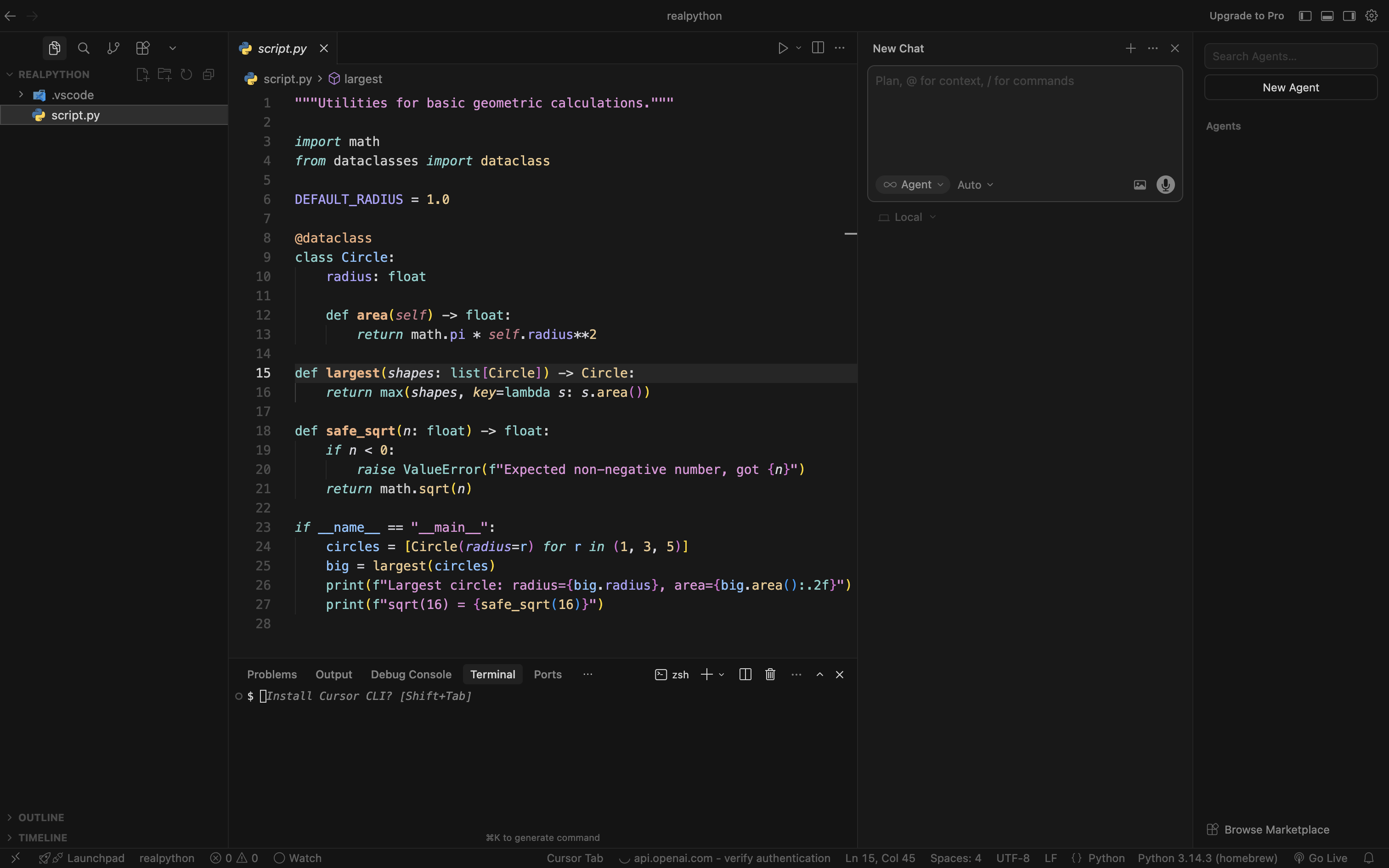
Cursor’s centerpiece is Agent mode, which can plan a task, edit across multiple files, run commands, and iterate until the change is done, all while you watch. A separate Plan Mode lets you review and refine that plan before Cursor touches any code.
For smaller edits, press Ctrl+K to open Inline Edit, where you describe a change in plain language, and Cursor rewrites the selected code. The chat sidebar supports @codebase references so the model can reason about your whole project. You can choose which model powers all of this, with options from OpenAI, Anthropic, and Google.
The editor itself is free to download and use. However, the free tier includes only a limited number of agent requests, so regular agent work pushes you onto a paid plan fairly quickly.
Here’s Cursor’s interface, with the AI chat panel open alongside the editor:
Best for: Developers who want a VS Code-style editor with a mature coding agent, plus a modal workflow that separates planning from execution.
Kiro
Kiro takes a spec-driven approach to AI-assisted development. Rather than jumping straight to code generation from a natural-language prompt, Kiro first converts your description into structured requirements using the Easy Approach to Requirements Syntax (EARS). Then, it generates a design document and implementation task list before writing any code.
The downside is that this process takes longer than writing a quick prompt. For small changes, like a one-line fix, you can use Kiro’s freeform chat instead.
Here’s where to read Kiro’s docs and download it:
| Resource | Link |
|---|---|
| Documentation | kiro.dev/docs |
| Download or install | kiro.dev |
Kiro also includes Agent Hooks, which run background tasks like updating documentation or generating tests when a workflow event fires, such as saving a file or completing an agent turn.
Built by AWS and powered by a choice of models, including Anthropic’s Claude family, OpenAI’s GPT models, and open-weight options, Kiro supports native Model Context Protocol (MCP) integration for connecting external tools and data sources. The editor is free, and you pay only for AI usage. Credits cover your prompts, spec refinement, and task execution, with a limited monthly allowance on the free tier and paid plans starting at $20 per month.
Like Cursor, Kiro is derived from VS Code, so its interface may look familiar:

Best for: Developers and teams who want AI-assisted development built around structured requirements rather than freeform chat, and who value auditability in the AI’s decisions.
Zed
Zed is written in Rust for speed, and it uses multiple CPU cores and even your GPU. It provides native Language Server Protocol (LSP) support for many programming languages.
Zed is the borderline case in this category, because speed rather than AI came first in its design. Even so, agentic editing is native to the editor rather than something you add through an extension.
Download Zed and dive into its documentation below:
| Resource | Link |
|---|---|
| Documentation | zed.dev/docs |
| Download or install | zed.dev/download |
Collaborative editing is built into the core, so you can share a session with a teammate as easily as you open a file.
The AI features include agentic editing with multi-step changes, inline assistance with context-aware suggestions in the editor, and edit prediction with real-time completions. Zed supports configurable model backends, so you can connect it to different AI providers.
Zed’s free tier gives you the full editor, unlimited use of your own API keys or an external agent, and a monthly allowance of two thousand accepted edit predictions. The hosted models require a paid plan, which starts at $10 per month.
Because Zed is relatively new compared to VS Code, its extension ecosystem is smaller, and some Python-specific integrations are less polished. If raw speed and low overhead matter more than a larger extension ecosystem, Zed is worth trying.
Here’s Zed’s interface with the integrated terminal and the AI chat panel:

Best for: Developers who want the fastest possible local editor with native AI features and built-in real-time collaboration.
Data Science Environments
Data science and machine learning workflows have different rhythms from those of application development. You use Python to explore data incrementally, visualize results inline, and share analyses as reproducible documents.
General-purpose IDEs and code editors support these workflows to a degree, but the tools in this section are specifically built for the job.
JupyterLab and Jupyter Notebook
Jupyter’s cell-based approach is the standard for interactive Python development in data science. Each cell contains code, Markdown, or rich output, such as plots, tables, and HTML. You can run cells in any order, which speeds up exploration.
This flexibility has a downside. When you run cells out of order, you can end up with results that you can’t reproduce from a fresh restart.
You can install Jupyter and get up to speed with the resources below:
| Resource | Link |
|---|---|
| Documentation | jupyterlab.readthedocs.io |
| Download or install | jupyter.org/install |
| Real Python | JupyterLab for an Enhanced Notebook Experience, Jupyter Notebook: An Introduction, and Using Jupyter Notebooks |
JupyterLab is the current-generation interface. It offers a full IDE-like layout that includes a file browser, multiple notebook tabs, a terminal, and a text editor. The classic Jupyter Notebook interface is simpler and still widely used. Both tools run in the browser and connect to a local or remote kernel.
You can significantly extend both interfaces through JupyterLab’s extension API.
Here’s the JupyterLab interface showing the file browser and the launcher:

Best for: Data exploration, visualization, reproducible research, and teaching. The right environment when your output is as important as your code.
Google Colab
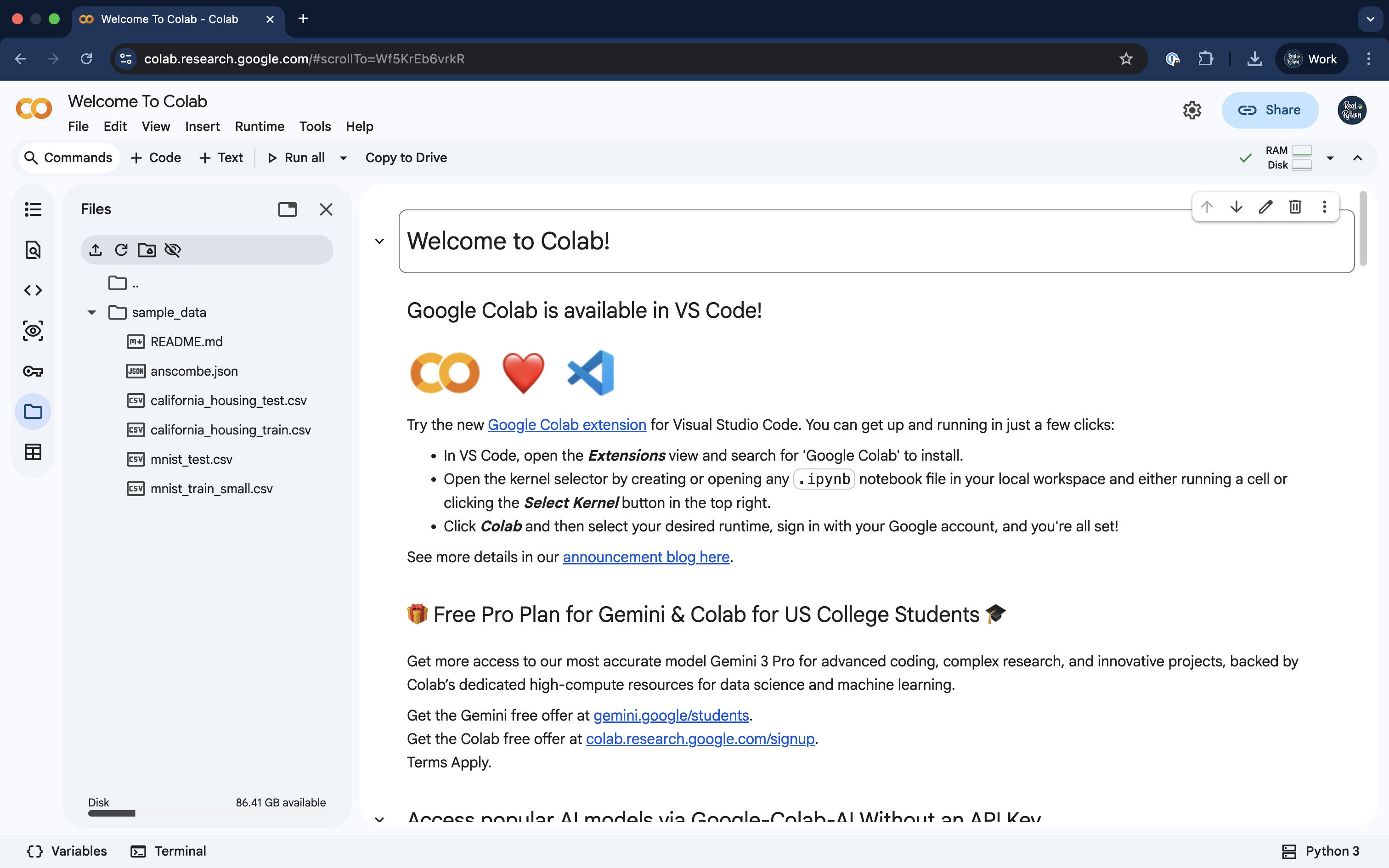
Google Colab is an online Jupyter notebook environment that runs entirely in your browser and is backed by Google’s cloud. The most compelling feature for machine learning workflows is its free access to GPU and TPU hardware. You can use this feature to train a model without any local setup.
You can learn more about Colab in the official documentation:
| Resource | Link |
|---|---|
| Documentation | colab.research.google.com |
| Download or install | No install needed—open a notebook |
| Real Python | Google Colab |
Sharing is built in through Google Drive. You send a link, and your collaborators open the same notebook in their browser. Colab notebooks integrate seamlessly with other Google services.
The main limitations are session timeouts and the lack of a persistent local file system. Idle sessions typically disconnect after around ninety minutes. Google doesn’t officially guarantee that limit, but it’s a widely observed window for the free tier. Files saved inside a session are lost when the runtime ends unless you mount a Drive folder or save to an external location. Colab Pro extends runtime limits and provides access to faster GPUs.
Here’s Google Colab in the browser:
Best for: Machine learning experimentation, sharing interactive notebooks without asking recipients to install anything, and situations where you need free GPU access.
marimo
marimo is an open-source reactive notebook for Python. Unlike a Jupyter notebook, a marimo notebook is stored as a plain Python file, and its cells form a dependency graph.
When you change one cell, marimo automatically reruns the cells that depend on it, so the code, outputs, and program state never drift out of sync. That design removes the hidden-state and out-of-order-execution problems that come from running Jupyter cells in an arbitrary order.
This automatic rerunning can slow you down when a cell is expensive to run. You can switch to lazy execution, but then you have to track which cells are stale yourself.
You can install marimo and explore the full tutorial and video course through these links:
| Resource | Link |
|---|---|
| Documentation | docs.marimo.io |
| Download or install | marimo.io |
| Real Python | marimo: A Reactive, Reproducible Notebook and Getting Started With marimo Notebooks |
Because marimo notebooks are pure Python, they play well with version control, and you can run them as scripts or serve them as interactive web apps without converting them first.
Here’s the marimo interface, with the file browser open beside a new notebook cell:

Best for: Data scientists who want notebook-style exploration without Jupyter’s hidden-state pitfalls, and who value notebooks that double as scripts and shareable web apps.
Spyder
Spyder is an open-source IDE designed specifically for scientific Python work. It comes bundled with Anaconda, so many data scientists already have it.
Spyder’s documentation, its download page, and a Real Python data science tutorial are all here:
| Resource | Link |
|---|---|
| Documentation | docs.spyder-ide.org |
| Download or install | docs.spyder-ide.org/…/installation |
| Real Python | Spyder: Your IDE for Data Science Development in Python |
The interface will feel familiar if you’ve worked with MATLAB or RStudio. It consists of a code editor on the left, an IPython console at the bottom, and a variable explorer and documentation browser on the right.
The variable explorer is Spyder’s standout feature. You can inspect NumPy arrays, pandas DataFrames, and Python objects as interactive tables without calling print(). The documentation browser fetches docstrings on demand and renders them inline.
The trade-off is that Spyder is a weaker fit for general software development, and its plugin ecosystem is far smaller than VS Code’s.
Here’s the Spyder interface:

Best for: Scientific Python users coming from MATLAB or R who want a familiar IDE experience and tight integration with NumPy, SciPy, and pandas.
Positron
Positron comes from Posit, the company behind RStudio. The editor targets data scientists who work in both Python and R. Because it’s built on VS Code, you get data science tooling inside a modern, extensible code editor instead of a single-purpose GUI like RStudio.
You can download Positron and explore its documentation here:
| Resource | Link |
|---|---|
| Documentation | positron.posit.co |
| Download or install | positron.posit.co/download |
Positron’s main draw is support for both languages in one environment. You can switch between Python and R kernels without leaving the editor. It also includes AI assistance and a variable inspector similar to Spyder’s.
Note that Positron gets its extensions from Posit Public Package Manager rather than Microsoft’s marketplace, so some VS Code extensions are missing or out of date.
Here’s the Positron interface:
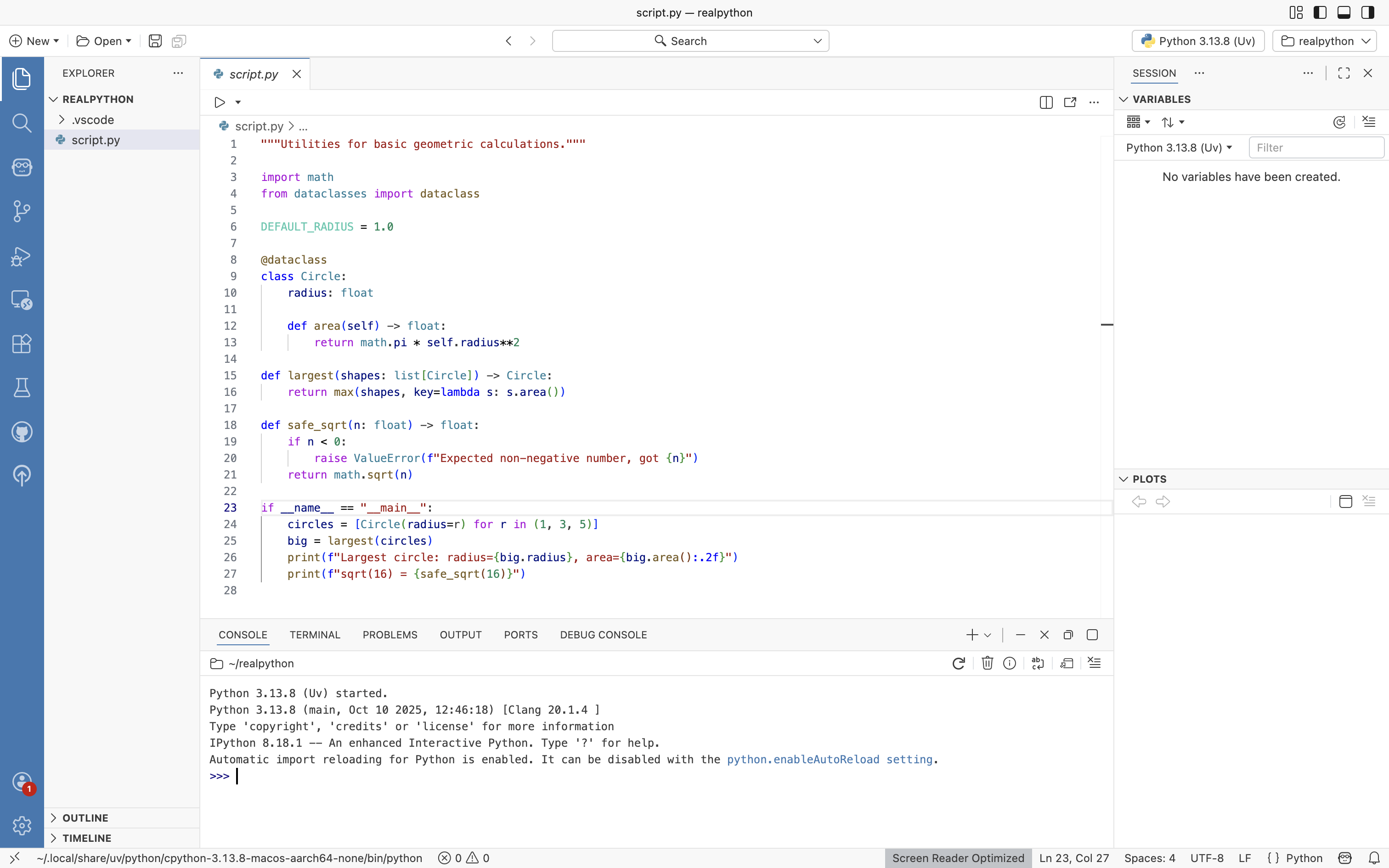
Best for: Data scientists who work in both Python and R, or who are transitioning from an R or RStudio background and want to bring familiar habits into a Python-capable environment.
Terminal-Based and Classic Editors
Some developers live entirely in the terminal. If your workflow revolves around SSH sessions, tmux, and shell scripting, a GUI editor creates more friction than it removes. Both editors in this section have deep histories, large communities, and fully capable Python development setups, but they also have steep learning curves that are worth acknowledging honestly.
Neovim
Neovim is a modernized fork of Vim with a focus on extensibility through Lua, built-in LSP client support, and an active plugin ecosystem.
Here’s where to get Neovim and its docs, plus Real Python’s guide to Vim, which covers a setup you can adapt for Neovim:
| Resource | Link |
|---|---|
| Documentation | neovim.io/doc |
| Download or install | github.com/neovim/neovim/releases |
| Real Python | VIM and Python – A Match Made in Heaven |
For Python development, the standard setup combines a few key components:
- Native LSP, built into Neovim since version 0.5 and configurable without plugins since version 0.11, or
nvim-lspconfigfor connecting to Pyright or the Ruff server to get completions and diagnostics nvim-treesitterfor managing syntax parsers and queriesconform.nvimfor integrating formatters likeblackandruff formatlazy.nvimas a plugin manager for loading and updating everything above
Modal editing—where Normal, Insert, and Visual modes each have distinct behaviors—requires considerable investment to internalize. Once the modal workflow becomes second nature, navigation and editing turn into keyboard-driven operations that feel faster than reaching for a mouse.
Here’s Neovim’s initial screen in the terminal:

Best for: Experienced developers who live in the terminal, value a fully keyboard-driven workflow, and are prepared to invest time in building and maintaining a configuration.
Emacs
Emacs describes itself as an “advanced, extensible, customizable, self-documenting editor,” but that undersells its scope. It’s closer to a programmable environment that happens to edit text and code. Most of Emacs, including the editing commands themselves, is written in Emacs Lisp and can be changed at runtime.
Emacs’s documentation, its download page, and a Real Python tutorial are all here:
| Resource | Link |
|---|---|
| Documentation | gnu.org/software/emacs |
| Download or install | gnu.org/software/emacs/download |
| Real Python | Emacs: The Best Python Editor? |
For Python development, the main building blocks are:
python.el(built in) for syntax highlighting and indentationlsp-modeoreglot(built in since Emacs 29) for connecting to an LSP serverpet.elorenvrc.elwith direnv for detecting and activating the right virtual environment automatically—the olderpyvenvandvirtualenvwrapper.elstill work but are less actively maintained
If configuring Emacs from scratch sounds daunting, Spacemacs and Doom Emacs are community-maintained configurations that give you a complete, opinionated setup. Doom Emacs is particularly popular for its startup speed and clean defaults.
Here’s Emacs configured for Python, with lsp-mode providing inline completions and diagnostics:

Best for: Developers who want maximum extensibility and are willing to treat their editor configuration as a long-term personal project.
Online and Cloud IDEs
Sometimes you can’t or don’t want to install anything locally. Maybe you’re on a shared machine, working from a tablet, or contributing to an open-source project without cloning a large repository. The cloud IDEs in this section give you a ready-made workspace in the browser for exactly those situations.
Note that Google Colab fits this category too. It runs entirely in the browser with nothing to install, and you’ll find it covered alongside the data science tools above.
GitHub Codespaces
GitHub Codespaces runs VS Code—either in the browser or in your local VS Code installation—backed by a cloud-hosted development container. When you open a Codespace from a GitHub repository, you get a complete development environment.
The official documentation walks you through getting started:
| Resource | Link |
|---|---|
| Documentation | docs.github.com/en/codespaces |
| Download or install | github.com/features/codespaces |
| Quickstart | docs.github.com/…/quickstart |
You can run and test code within minutes, without the usual setup work. The tight integration also means pull requests, issues, and GitHub Actions are one click away.
GitHub offers a free monthly quota of Codespace compute hours. Heavier use is billed by the hour. Cost aside, everything runs remotely, so a Codespace is only as good as your network connection, and it isn’t an option when you’re offline.
Here’s GitHub Codespaces running VS Code in the browser:

Best for: Contributors to open-source projects on GitHub, teams that want a reproducible dev environment without managing local setup, and situations where you need VS Code’s full feature set without a local machine.
Real Python Exercises
If you’re learning Python here at Real Python, then our coding exercises provide a browser-based interactive environment that lets you practice directly on the website. You don’t need to install anything, and there’s no context switch away from the tutorial or video course you’re working through.
Each exercise presents a clearly scoped task with step-by-step instructions, starter code, and a set of automated tests. You write your solution in an in-browser editor, then run the tests to get immediate feedback.
If you get stuck, unlockable hints guide your thinking without giving away the answer. Once you submit a passing solution, the reference implementation and notes are revealed, explaining the reasoning behind the approach and common alternatives.
Exercises come in three difficulty levels: Basics, Intermediate, and Advanced.
The exercises are embedded directly in tutorials and video courses so you can practice the exact concept you just learned. You can also search for coding exercises and tackle them as standalone challenges.
Here’s the Real Python Exercises interface, with the in-browser code editor and automated test results:

Best for: Learners who use Real Python as their main platform and want to move from reading to doing without leaving the page. You’ll get immediate automated feedback and structured hints to guide your practice.
Choosing the Best Python Editor or IDE for the Job
With sixteen tools across six categories, the choice can feel overwhelming. In practice, you probably fit into one of a handful of common scenarios. Use the flowchart below to narrow your options, and then try one or two that match your situation:

Each branch ends with a shortlist rather than a single answer. The table below narrows those shortlists further, naming where to start in each situation and why:
| Situation | Start With | Why |
|---|---|---|
| You’re new to Python | Thonny or IDLE | Thonny bundles its own Python, and IDLE ships with the official installer, so you don’t have to configure an environment first. |
| You want one editor for everyday work | VS Code | The Python extension covers the widest range of use cases. |
| You want a batteries-included Python IDE | PyCharm | It delivers deep Python support out of the box, with no extensions to manage. |
| You want AI built into the editor | Cursor or Kiro | Cursor is the smoothest on-ramp for VS Code users, and Kiro is more structured and spec-driven. |
| You work in notebooks | JupyterLab or Google Colab | JupyterLab handles local exploration, and Colab helps when GPU access or sharing matters. |
| You work across Python and R | Positron | It’s the one environment built for both languages. |
| You live in the terminal | Neovim | It offers a native LSP client and a Lua-based plugin ecosystem. |
| You need zero local setup | GitHub Codespaces or Google Colab | Both run in the browser, with Codespaces for general development and Colab for notebooks. |
The flowchart and the table both start from your situation. You can also work backward and start from the features you can’t do without, then see which tools survive:
Most professional Python developers use more than one tool. A combination like VS Code for daily development plus JupyterLab for exploratory analysis is common. So is PyCharm for backend work plus Cursor for AI-heavy feature work. You don’t have to pick exactly one and stick with it.
Conclusion
Python’s editor landscape moves fast. AI-first editors barely existed three years ago, and the next category will arrive on an even faster timeline. What changes more slowly is how you judge an editor: how quickly it gets you to a working interpreter, how well it supports debugging and testing, and whether it fits the work you do rather than the work you imagine doing.
In this guide, you’ve learned how to:
- Match six categories of tools to your skill level, project type, and workflow
- Weigh AI-first editors against traditional editors with AI plugins
- Choose a starting point that fits the situation you’re actually in
The best editor is the one you stop noticing, so install your pick and put a real project through it.
Once you’ve settled on one, Real Python’s Perfect Your Python Development Setup learning path covers the rest of the toolchain, including virtual environments, Git, pyenv, and Docker.
Get Your Cheat Sheet: Click here to download your free Python IDEs and code editors cheat sheet (PDF) and match the right tool to your skill level, project type, and workflow.
Frequently Asked Questions
Now that you have a better sense of the Python IDE and code editor landscape, you can use the questions and answers below to check your understanding and recap what you’ve learned.
Click the Show/Hide toggle beside each question to reveal the answer.
A code editor is a lightweight tool focused on writing code, while an IDE bundles extras like a debugger, a test runner, and project management features. The line between them has blurred considerably. For example, VS Code is technically a code editor but gains full IDE capabilities through extensions.
Thonny is the most beginner-friendly option because it bundles its own Python interpreter and includes a visual debugger that shows exactly which subexpression is being evaluated. IDLE is also a solid starting point. It ships with Python on Windows and macOS, and on Linux it’s one command away: sudo apt install idle on Ubuntu or Debian.
Both are excellent choices, and the right pick depends on your workflow. VS Code is more flexible and works well across many languages, while PyCharm offers deeper out-of-the-box Python support with fewer extensions to manage, especially for Django and Flask projects.
It’s also worth noting that most AI-first editors are built on VS Code’s foundation, so VS Code users will find the transition to those tools much smoother.
A traditional editor adds AI on top of an architecture that predates it. An AI-first editor is built around AI from the start. VS Code and PyCharm now offer similar AI features, so the difference shows up in the defaults. In an AI-first editor, an agent drives multi-file changes and you review the result, while in a retrofitted editor, AI waits in a side panel until you open it.
No, and most Python developers don’t. The split usually follows the work: a general-purpose editor for application code, a notebook environment for exploration, and often an AI-first editor for large refactors or unfamiliar codebases. Start with one, and add a second only when your current tool fights the work you’re doing.
Take the Quiz: Test your knowledge with our interactive “The Best IDEs and Code Editors for Python (Guide)” quiz. You’ll receive a score upon completion to help you track your learning progress:
Interactive Quiz
The Best IDEs and Code Editors for Python (Guide)Test your grasp of Python IDEs and code editors, from beginner-friendly tools to notebooks, AI-first editors, and cloud workspaces.